
In this article, we will detail what the “Use minimum hours for a booking if a rates card is set.” setting is, how to enable / disable it and how it works for your timesheets.
Please note this section is only applicable to agencies who are using the Rate Cards
In this article, we will cover the following questions:
- What is the minimum hours on a Rate Card?
- How do I set the minimum hours on a Rate Card?
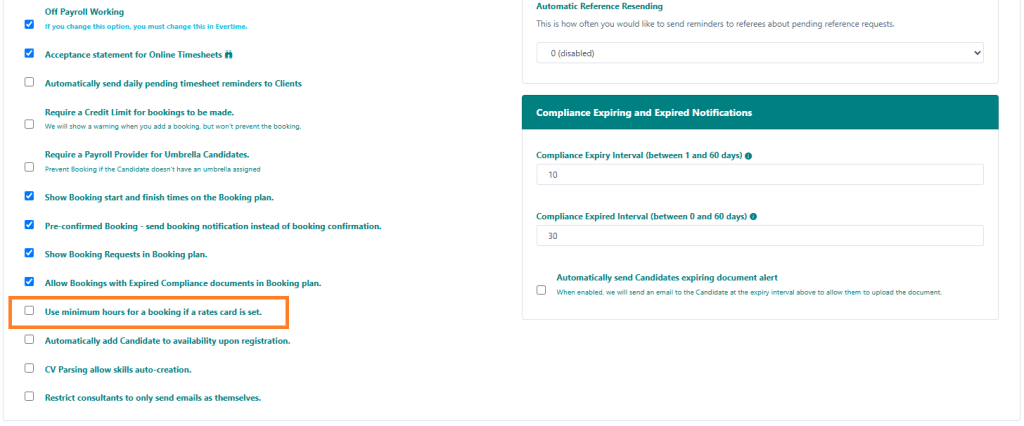
- How do I turn the Use minimum hours for a booking if a rates card is set setting on?
- What happens to a timesheet when this setting is on?
What is the minimum hours on a Rate Card?
The minimum hours on a Rate Card allow you to define the minimum number of hours that will be processed for the timesheets for a specific role at a client. For example, you may supply your candidates on the basis of the minimum hours being agreed to 8 hours, so regardless of whether the work was completed in 6 or 9 hours, the calculations will always ensure they never fall below the minimumhours. Note this is only for minimum hours, a candidate can go over this, for example 10 hours, and it won’t need to kick in.
How do I set the minimum hours on a Rate Card?
To set the minimum rate on a rates card, when you are adding or editing the rates card, you can define this in the highlighted section named Min. Hours. This is defaulted to 0, which means the rule won’t kick in.

How do I turn the Use minimum hours for a booking if a rates card is set setting on?
To turn this setting on, you can check the ‘Use minimum hours for a booking if a rates card is set’ option and this will turn the feature on. Please note, this will only apply to newly captured timesheets and won’t impact old timesheets.
What happens to a timesheet when this setting is on?
With this setting switched on, when the candidate or consultant completes a timesheet, the timesheet will check the rates card for the minimum hours and if this has been set, will ensure the total hours for each shift meets or exceeds the minimum hours and if it doesn’t, will automatically update the calculations to reflect this.
Additional Support
For any additional support or queries, please raise a ticket with our Customer Success Team on support@centricflow.co.uk or using the help button on the CRM.