
CentricFlow has the power to automate your Credit Requests. The feature allows you to create a credit request and for the Credit Controller to approve, amend or reject from their portal. There are a few steps to get this setup.
Setup a Credit Controller
- Head to Account Settings (The menu by your name)
- Select Credit Controller from the left-hand menu
- Click the Add button and complete the form (as shown below)
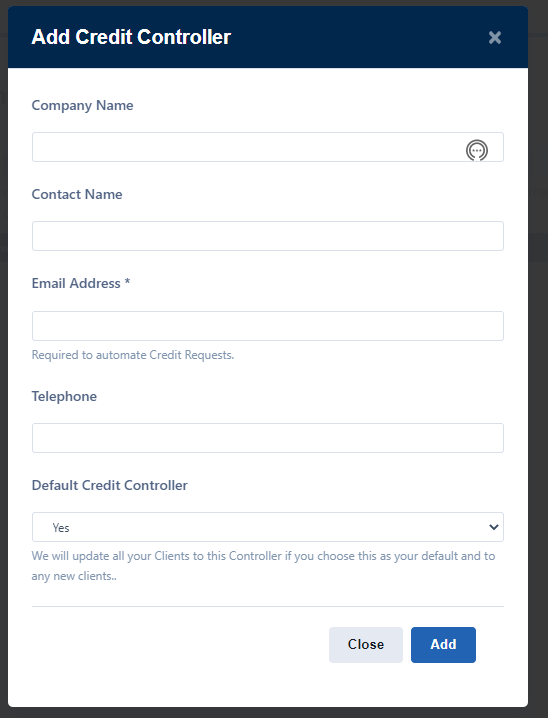
When you are completing the form, note that the email is the email address the system will send requests to and the Default Credit Controller will be assigned to all new Clients if selected.
Requesting a Credit Limit
To create a credit limit, once setup, is simply.
- Head to Clients
- Locate the Client and click Request Credit Limit where you will be presented with the following;
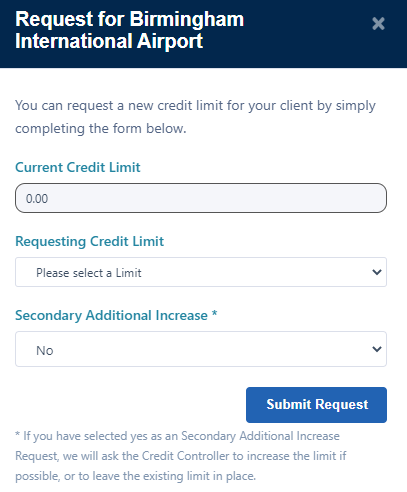
- When you complete the form and submit it, the system will automatically send the request to the Credit Controller and the Client Manager.
- If the request is over £10K you can supply a reason.
- If you want to make a soft request without affecting the current Credit Limit, select yes to the Secondary Additional Increase.
- There is a traffic light system that will help you identify the status of the Credit Limits:
- Red – No Credit Limit Requested
- Orange – Credit Limit Request is Active (Pending Credit Controller)
- Green -Active Credit Limit Approved by Credit Controller
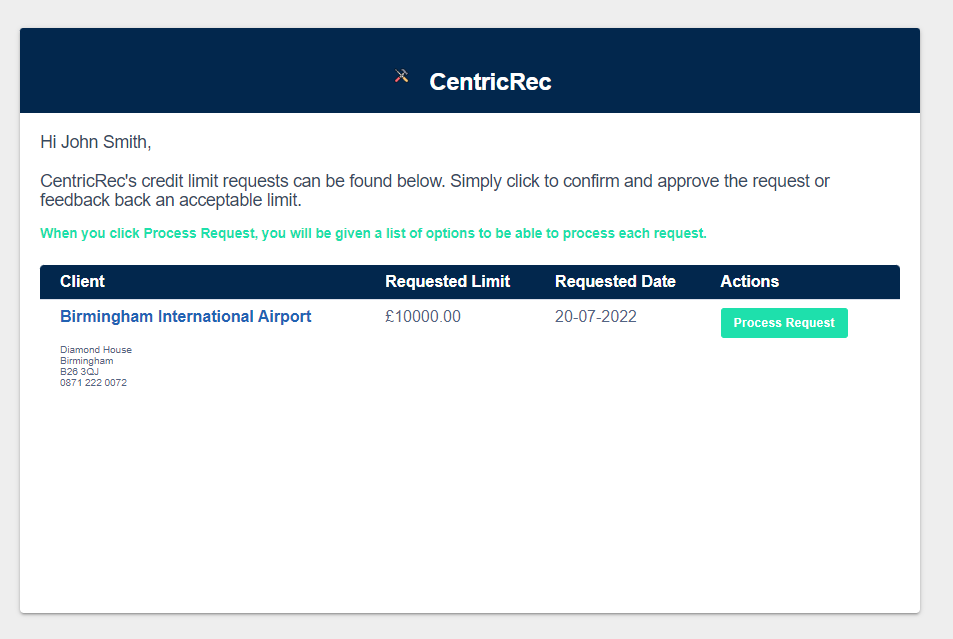
- Below is an example of what the Credit Controller will see;
If you require any further assistance, please get in touch with the CentricFlow Support team on support@centricflow.co.uk