When you add a Booking Request, you can now specify your Evertime Rates that you would like to use for the bookings, when a candidate has been allocated.
Before you start creating a Booking Request, you must create your rates first. You can refer to https://hub.centricflow.co.uk/knowledge-base/evertime-integration/how-do-i-setup-my-rates-within-centricflow/ to create these rates in CentricFlow.
Creating a Booking Request
- Browse to Bookings > Booking Requests
- Click Add Request
- Within the Add Request screen, you will see the following:
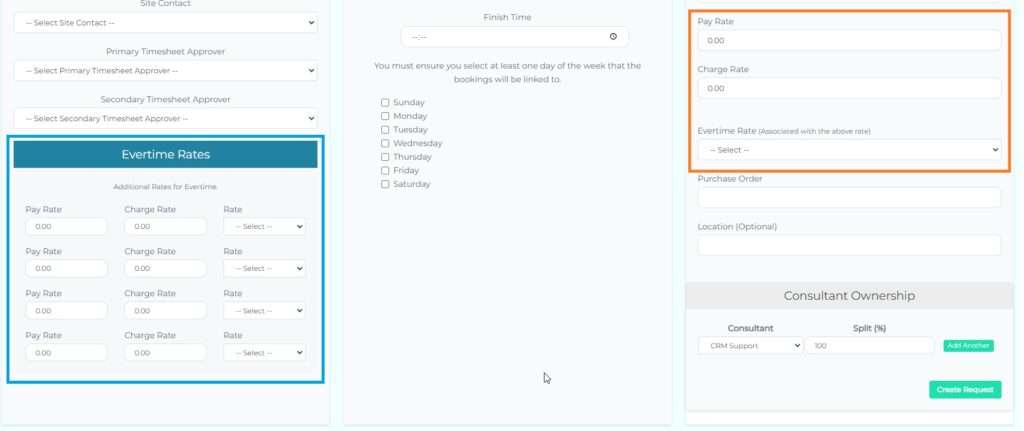
The orange zone in the primary rate for the booking and the blue zone are any additional rates you may need for the placement.
Allocating a Candidate to a Booking Request
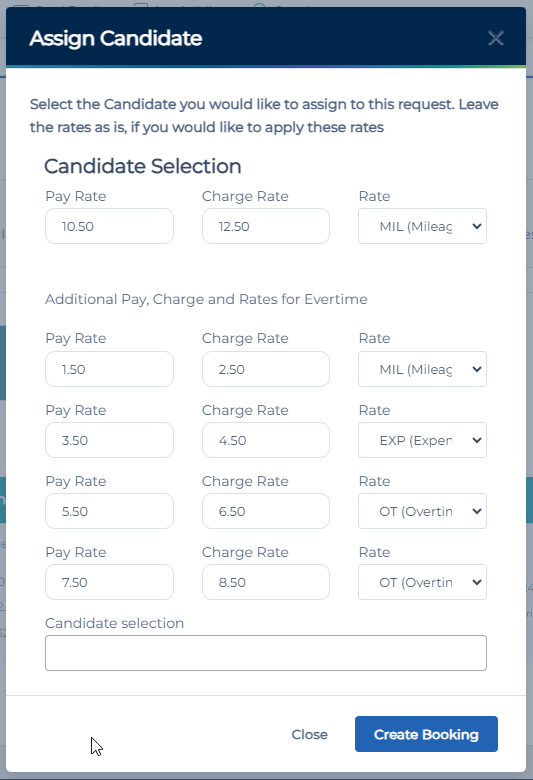
When you allocate a candidate to a booking request, you will see the following popup. This is your opportunity to adjust the rates for the candidate you are allocating. Please note this will not impact the existing booking request, it will only amend the rates for the candidate you have selected.