
In short
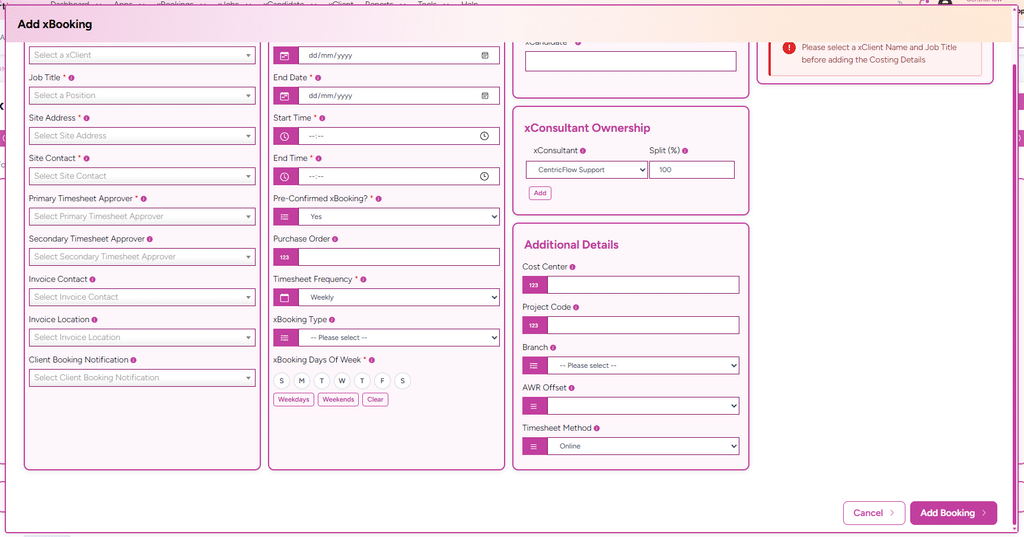
Timesheet Method tells Evertime Pay & Bill how timesheets for a booking are captured: Online (completed online) or Manual (added manually). When you add a booking, the field is filled in for you from the agency default, then from the client you select. You can change it before you save.
Summary
Every booking you send to Evertime Pay & Bill needs a Timesheet Method. There are two options:
| Option | What it means |
| Online | Timesheets for this booking are completed online in Evertime Pay & Bill. |
| Manual | Timesheets for this booking are added manually by the agency. |
The value is set at three levels. The most specific one is used:
- Booking: the method chosen on the booking itself.
- Client: the client’s default, set on the client record.
- Agency: the agency default, which applies to every client set to “Use Agency default”.
Where to find it
| What | Where |
| When adding a booking | Add Booking > Additional Details > Timesheet Method |
| To change it on an existing booking | Booking Plan > Actions > Change Timesheet Method |
| To see the current value | Booking Plan > View Booking Insights > Timesheet Method |
| Client default | Client > Details > Timesheet Method |
| Agency default | Manage Integrations > Settings > Evertime Default Timesheet Method |
When it applies
- To every booking added by Evertime, Intime and Direct agency users.
- To the whole booking, from start date to end date, including every weekly placement created in Evertime Pay & Bill.
- To bookings created before this field was introduced: they use the client default, then the agency default, until you change them.
How the field is filled in when you add a booking
- Open Add Booking. No client has been chosen yet, so the field shows the agency default. If your agency has no default, it shows “Select…”.
- Select the client. The field updates to the client’s Timesheet Method. If the client is set to “Use Agency default”, the agency default stays.
- Change the client (if needed). The field updates again to the new client’s method.
- Clear the client. The field goes back to the agency default.
- Check the value and change it if this booking is different. You can choose Online or Manual for this booking only. The client and agency defaults are not changed.
- Click Save. The Timesheet Method is saved for the whole booking and recorded in the booking log.
| Tip: selecting or changing the client always replaces the Timesheet Method with that client’s method. If you want a different method for this booking, choose it after selecting the client. |
How it integrates with Evertime Pay & Bill
- When the booking is confirmed, the Combi CSV includes the Timesheet Method (“Online” or “Manual”) on every line for the booking.
- When the Combi is imported into Evertime Pay & Bill, manually or by Auto-FTP, each weekly placement is set to that Timesheet Method.
- If a booking has no method of its own (older bookings), the client default is sent, then the agency default.
- If you change the method later with Change Timesheet Method, the new value is sent in the next Combi. Placements already in Pay & Bill are updated when that Combi is imported.
- Changing the Timesheet Method does not change any other booking details, such as the AWR Offset.
Validation rules
| Rule | Details |
| Mandatory | Timesheet Method must be selected before the booking can be saved. Message: “Timesheet Method is required.” |
| Allowed values | Online or Manual only. Other Evertime methods are not available. |
| Pre-filled | Agency default when Add Booking opens; replaced by the client’s method when a client is selected. |
| No agency default | The field shows “Select…” and you must choose a method before saving. |
| Whole booking | The method applies to the full booking date range. It cannot be set for part of a booking. |
Examples
| Agency default | Client setting | You choose | Booking is saved as |
| Manual | Use Agency default | No change | Manual |
| Manual | Online | No change | Online (from the client) |
| Online | Manual | Online | Online (your choice for this booking) |
| Not set | Use Agency default | Must choose | Your choice (Online or Manual) |
Frequently asked questions
The field changed after I picked the client. Why?
The field loads the selected client’s Timesheet Method. Choose a different value after selecting the client if this booking needs it.
Does changing the field on a booking change the client’s default?
No. It only affects this booking. To change the client default, go to Client > Details > Timesheet Method.
I need to change the method on a booking I have already saved.
Use Booking Plan > Actions > Change Timesheet Method. The change applies to the whole booking and is recorded in the booking log.
The field did not update when I selected the client.
If the client’s method could not be loaded, you will see a message and the current value is kept. Check the value before saving, and contact Support if it keeps happening.